Welcome


Welcome to phishandchips.dev!

My name is Luke Varley and i am a Technical Escalation Engineer for BeyondTrust Software with their Endpoint Privilege Management series of products.

Over the years, i have learned tonnes from random blogs of other technical professionals online when researching issues i have been working on. Without those individuals documenting their work and sharing their notes online, i would not have learned as much as i have over my 10+ years working in the IT industry.

I have decided to do the same and share some of my notes i have made over the years online for other people to benefit from for good karma's sake. After all, the original purpose of the internet was to share information and ideas for educational purposes!

I may also post some other ramblings from my life from time to time or document other things i want to share from my HomeLab, as that's one of my main hobby's these days.

In my spare time when I'm not out enjoying the countryside with my significant other I'm normally working on small side projects in my homelab such as: Docker, Kubernetes, VMware, Hyper-v, Windows Server, Ubuntu, Raspberry Pi, Data Hoarding, Networking, Plex, Veeam, BeyondTrust, Sophos, Powershell, Batch, Bash and other software and technology that interests me.

Thanks everyone for taking time to read this and have a wonderful day !

P2V tools


P2V tools

Friday, November 20, 2020

1:57 AM

Starwind:


Disk2vhd: convert a physical machine to virtual machine Hyper-V (P2V)

/Blog @en /Disk2vhd: convert a physical machine to virtual machine Hyper-V (P2V)

·        October 31, 2019

·        Iperius Backup Team

Disk2vhd is a free software to convert a disk into a corresponding .VHD / .VHDX image file. It can be used to make an image backup of a system, or to virtualize it on a Hyper-V environment.

Virtualization is one of the key aspects of any modern and efficient IT infrastructure. Disk2vhd can therefore be a quick solution to convert physical machines into virtual ones, and have them immediately available in Hyper-V. Disk2vhd was initially created by the SysInternals company, later acquired by Microsoft.

See also: Hard Drive Cloning: How to use Iperius to clone your hard disk

Below we review the simple steps to convert a physical machine to VHD:

1. Download the Disk2vhd utility

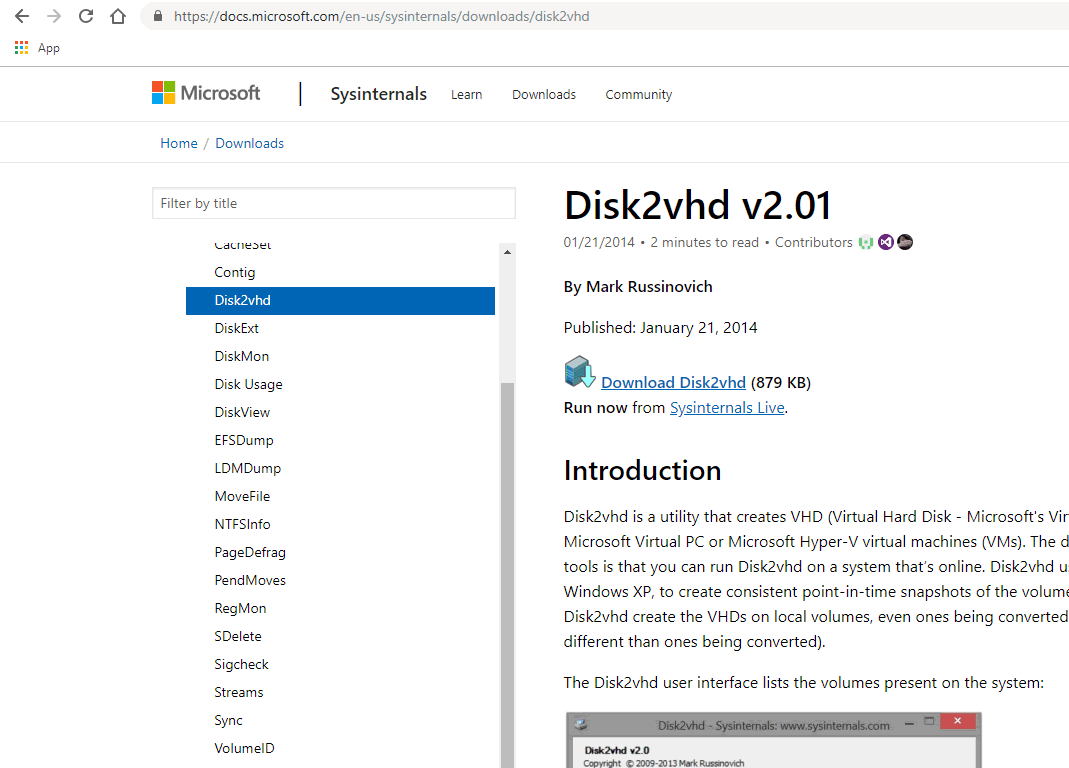
Go to Sysinternals page of Microsoft website and download Disj2vhd.


2. Extract the program from the zip and run it

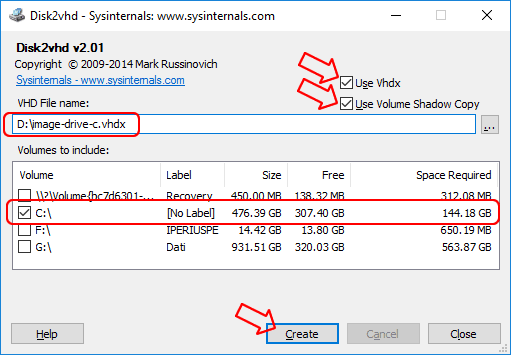
Dik2vhd is portable (no installation required), so just run it. The following interface will be shown, with the list of disks on your computerr:

There are very few options to set:

Use VHDX: VHDX is a new disc format introduced with Windows Server 2012. Compared to the VHD, the VHDX has several improvements, including an internal organization created to reduce data corruption and increased capacity (up to 64 TB). VHDX is the recommended choice.

Use VSS: this option is essential to perform the hot creation of the image and to obtain a consistent copy of the data

VHD File name: Select the destination where the software will create the VHDX file (choose a different disk than the one you are making the image of, or a network path).

Select the disks you want to convert to VHDX. Clearly, if you are doing this to virtualize an operating system, you will have to select the disk where Windows is installed so that it can then start up as a virtual machine.

Click on Create to start the process.

Disk2vhd will make a shadow copy (VSS) of the selected disks and create the respective VHDX image files. Let’s see how to use a Windows image file to boot the system on a Hyper-V virtual machine:

3: Create a new virtual machine on a Hyper-V host

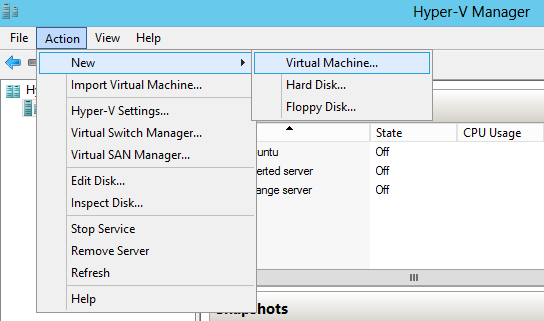
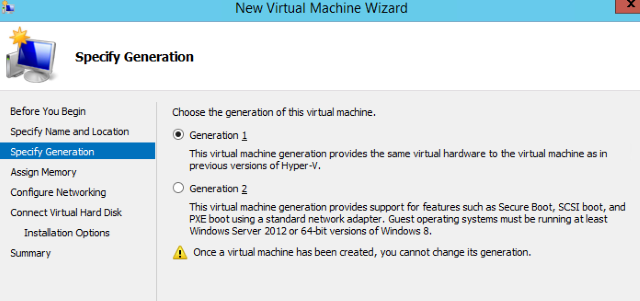
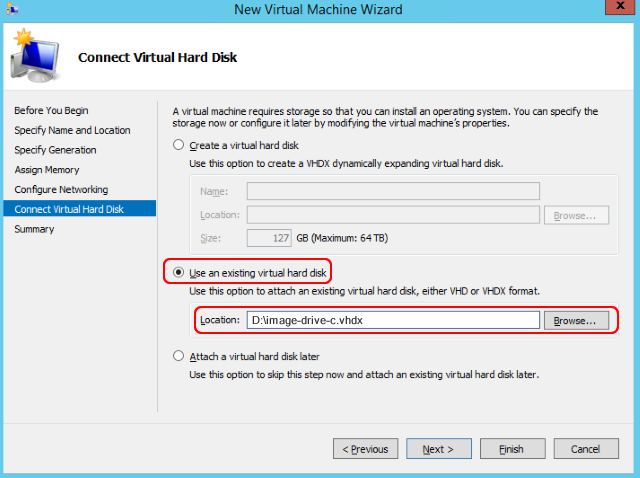
After copying the VHDX file to a Hyper-V server, you can use it as a boot disk of a virtual machine. You must first create a VM using Hyper-V Manager. Run the wizard New – »Virtual Machine in Hyper-V Manager and configure the various parameters (CPU, memory, etc.) according to your needs. On Server 2012 R2 it will also be necessary to specify the VM generation.


4. Connect the VHDX file as a virtual machine disk:

Complete the VM configuration and start it up by right clicking on it and selecting start. The first boot of the machine may take longer since the hardware configuration in the virtualization environment is different from that of the physical machine of origin.

In a few simple steps you have therefore converted a physical machine into a virtual one and you can start Windows without any further intervention.


From <https://www.iperiusbackup.net/en/disk2vhd-convert-a-physical-machine-to-virtual-machine-hyper-v-p2v/>


Created with OneNote.

Wake on lan


Wake on lan

Thursday, August 27, 2020

3:39 AM

Troubleshooting Wake On LAN on a Windows PC

Here are some steps you can take to troubleshoot issues when trying to wake a PC.

Minimum Requirements

·        The computer you are trying to wake up must be on a wired connection (not on WiFi)

·        A second LogMeIn host computer must be switched on and in the same network in order to send the wake request

Important: Make sure you are using up to date, officially supported third-party technology together with LogMeIn. LogMeIn is designed for use with third-party products and services (browser, OS, etc.) that are officially supported by their respective vendors and well-maintained by the end user (latest patches and updates installed). Learn more

Hardware Requirements

To ensure best results, make sure the following items are using up-to-date drivers or firmware:

·        Motherboard Chipset

·        Network Adapter (if you have recently updated to Windows 10, make sure the Network Adapter drivers are updated)

·        BIOS
Tip: In the BIOS under Power Management, Deep Sleep must be turned off.

Consult your computer or hardware manufacturer for assistance in downloading and installing drivers and firmware.

Tip: When Wake On LAN is possible, the LED light of both your network adapter and ethernet port should be lit up or blinking. These are commonly located on the back of your computer. If these lights are not lit up or blinking, the issue is with your network adapter or ethernet port hardware and you may want to contact the manufacturer.

Enabling Wake On LAN on Windows 10

1.      Open the Quick Access Menu by pressing the Windows key and X at the same time.

2.      Click Device Manager.
The Device Manager window is displayed.

3.      Expand the list of Network adapters.

4.      Right-click the primary network adapter and select Properties.
The first adapter in the list is usually the primary adapter.

5.      Select the Power Management tab.

6.      Select the boxes for Allow this device to wake the computer and Only allow a magic packet to wake the computer.

7.      Select the Advanced tab.

8.      In the Property box, highlight Wake on Magic Packet.

9.      Set Value to Enabled.

10.   Select OK.

11.   Restart your computer.

Further Resources and Information

To see a full list of available states on your host machine, in command line type powercfg -a and verify that states S3, S4 and S5 are available.


Tip: To open a command line, press the Windows key and R at the same time on your keyboard to open a Run box, then type in cmd and select OK.                                                                                                                      2


ACPI (Advanced Configuration and Power Interface) standards:

·        S0 – System is fully powered on

·        S1 – Power on Suspend(POS): Power to the CPU and RAM is maintained.

·        S2 – CPU powered off.

·        S3 – Standby, Sleep or Suspend: RAM still has power

·        S4 – Hibernation: Memory is saved to the hard drive and the system is powered down.

·        S5 – Shut Down: The power supply still supplies power to the power button.

For additional information, visit the Microsoft support site.


From <https://support.logmeininc.com/central/help/troubleshooting-wake-on-lan-issues-on-a-windows-pc-central-c-host-preferences-troubleshooting-wol-pc>


Created with OneNote.

How to Read Shutdown and Restart Event Logs in Windows


How to Read Shutdown and Restart Event Logs in Windows

Thursday, February 27, 2020

1:02 AM


Created with OneNote.

Removing tiered storage spaces - Windows Server 2022

As part of the work I have done in my homelab with tiered storage on Server 2022 storage spaces , here is a script I created that allows you...